Connect your social accounts
Link the accounts you post to. Most take one click and a quick approval on the network's own site.
Before you start
You'll need to be an admin of each page or account you connect. For a Facebook Page or an Instagram business account, sign in with the Facebook profile that manages it.
Connect a network
- Open My accountsClick My accounts in the sidebar. Scroll to Add a network to see all 12 networks.
- Pick oneClick the network you want. Every network connects with one click: you're sent to that network to sign in and approve access.
- Approve accessClick Continue with Instagram (or whichever network), approve Socira, and you'll come straight back.
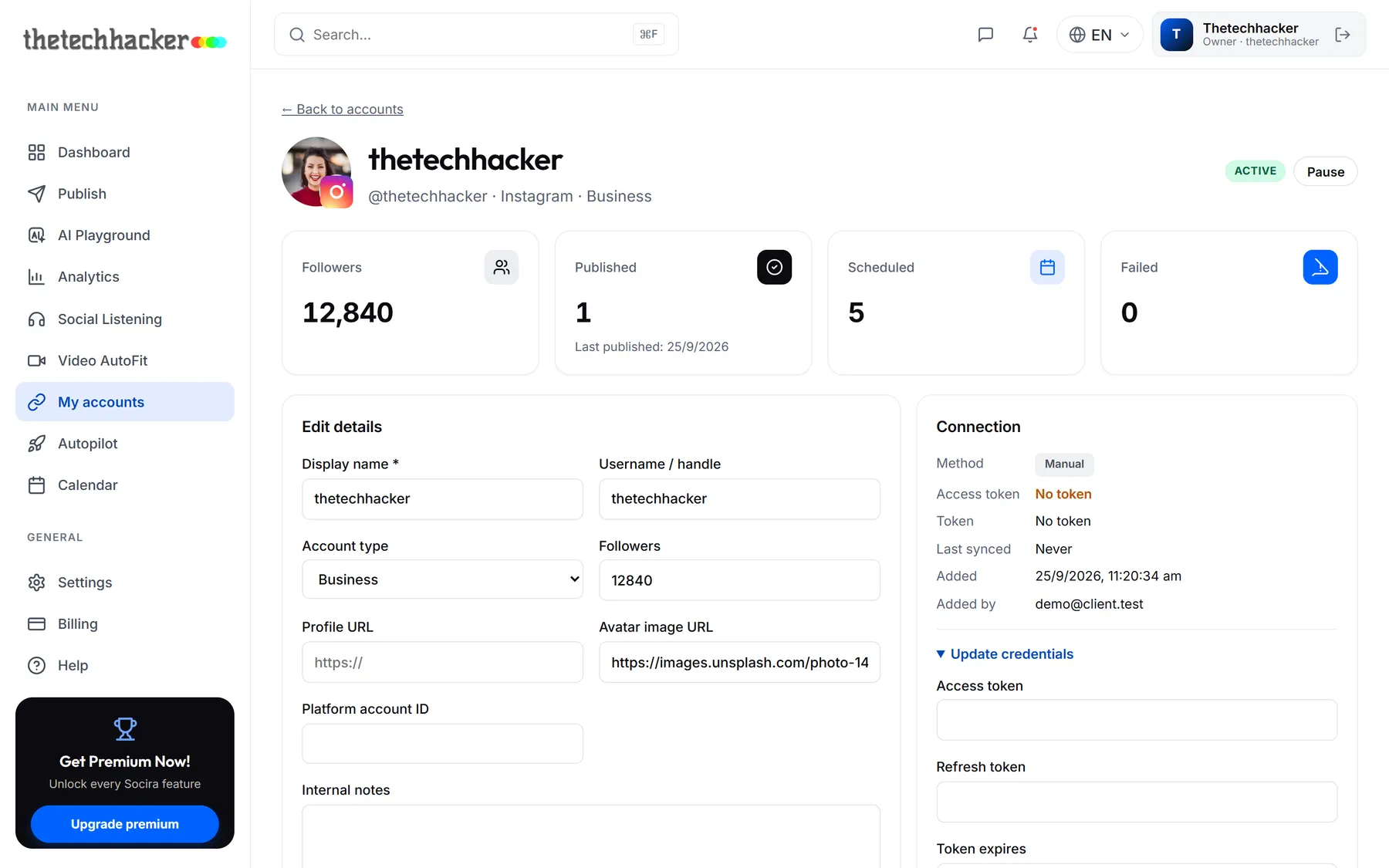
- Check it arrivedYou land on the account's page with its name, picture and followers filled in. That's it.
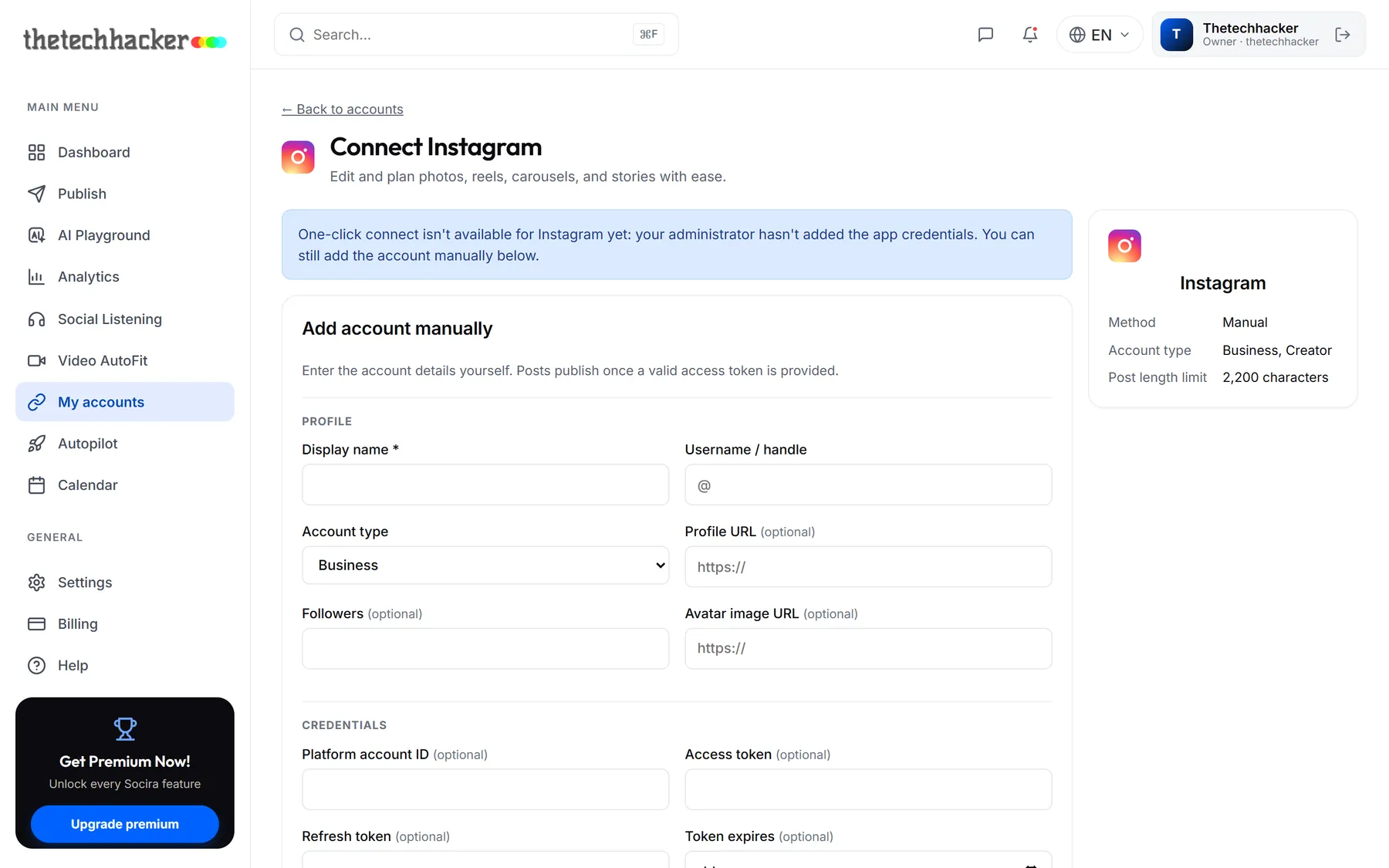
See all your accounts
Back on My accounts you get the full picture: how many accounts you've connected against your plan, your total audience, and a table of every account with its followers and status.
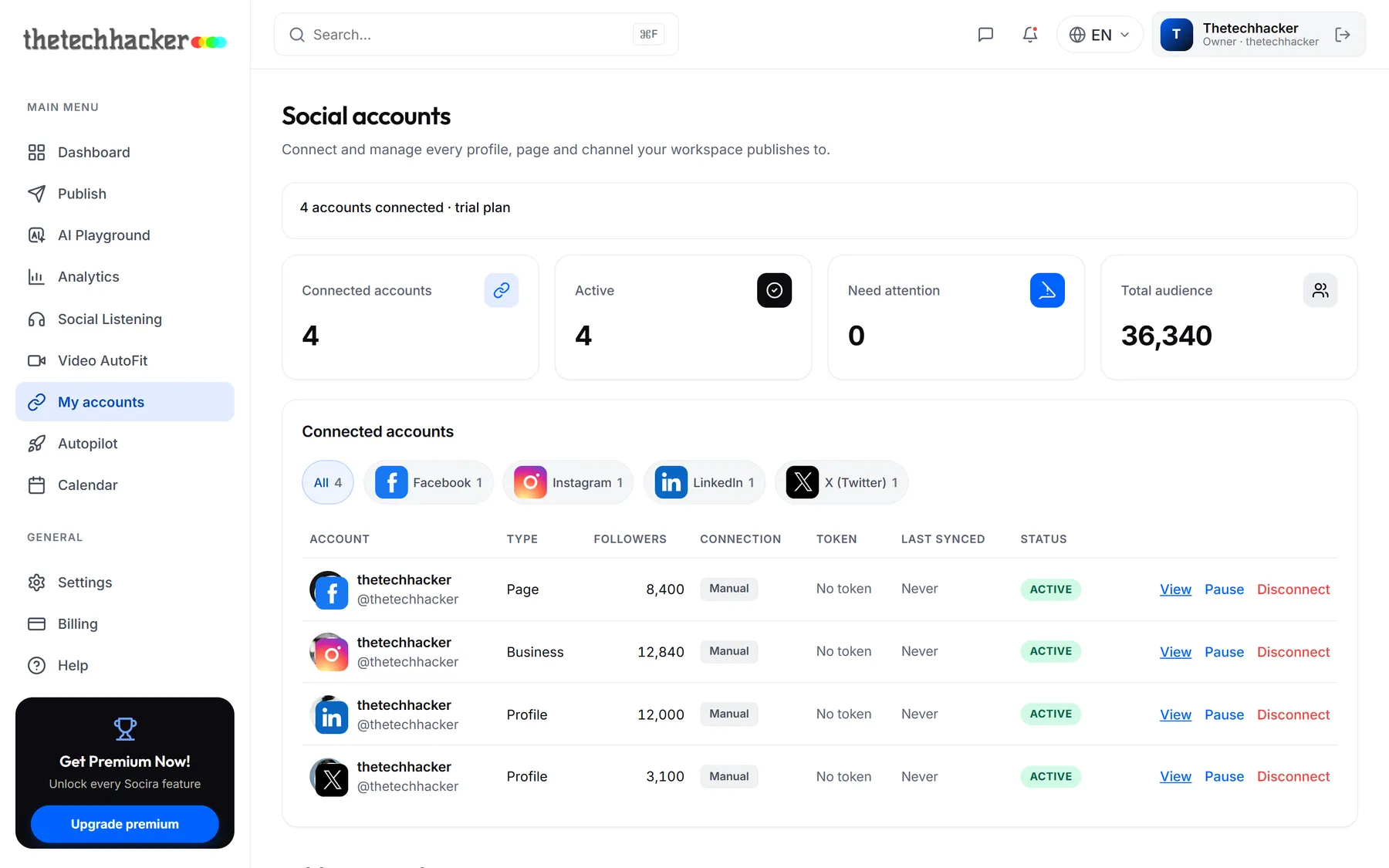
Click any account to open its page. From there you can edit its details, Pause it so it's left out of posts for a while, or Disconnect it.
Facebook Pages and WhatsApp
- Facebook asks which Pages to share. Tick every Page you want to post to and they are all connected in one go.
- WhatsApp opens Meta's short setup window. Choose (or create) your WhatsApp Business account and phone number, and each number you share appears in Socira.
When something needs attention
Networks sometimes ask you to sign in again, usually every few weeks. When that happens the account shows up under Need attention. Open it and click Reconnect before your next post goes out.
Last updated 26 September 2026