Queue & posting schedule
Fill your queue once and let Socira post at your best times all week.
How the queue works
Think of your queue as a row of empty time slots, three a day by default. Each time you click Add to Queue, your post drops into the next empty slot for those accounts. Batch a week of content on Monday morning and you're done until next Monday.
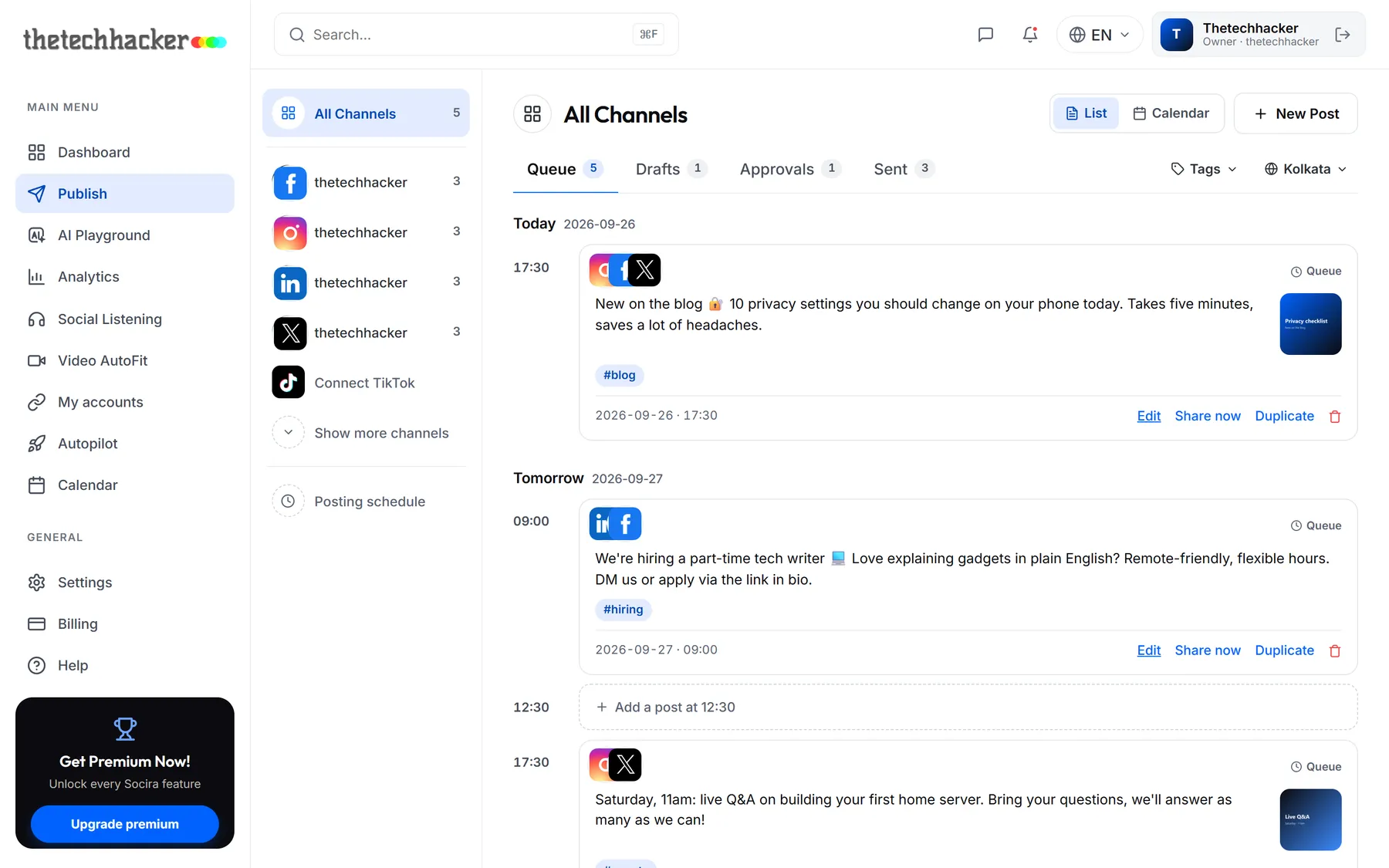
Find your way around Publish
- The column on the left lists your accounts with how many posts each has queued. Click one to see only its posts.
- The tabs across the top split your posts into Queue, Drafts, Approvals and Sent.
- Tags filters by campaign, and the timezone button takes you to your posting schedule.
TipTag posts by campaign, for example "reviews" or "hiring". It makes a busy queue much easier to scan.
Change your posting times
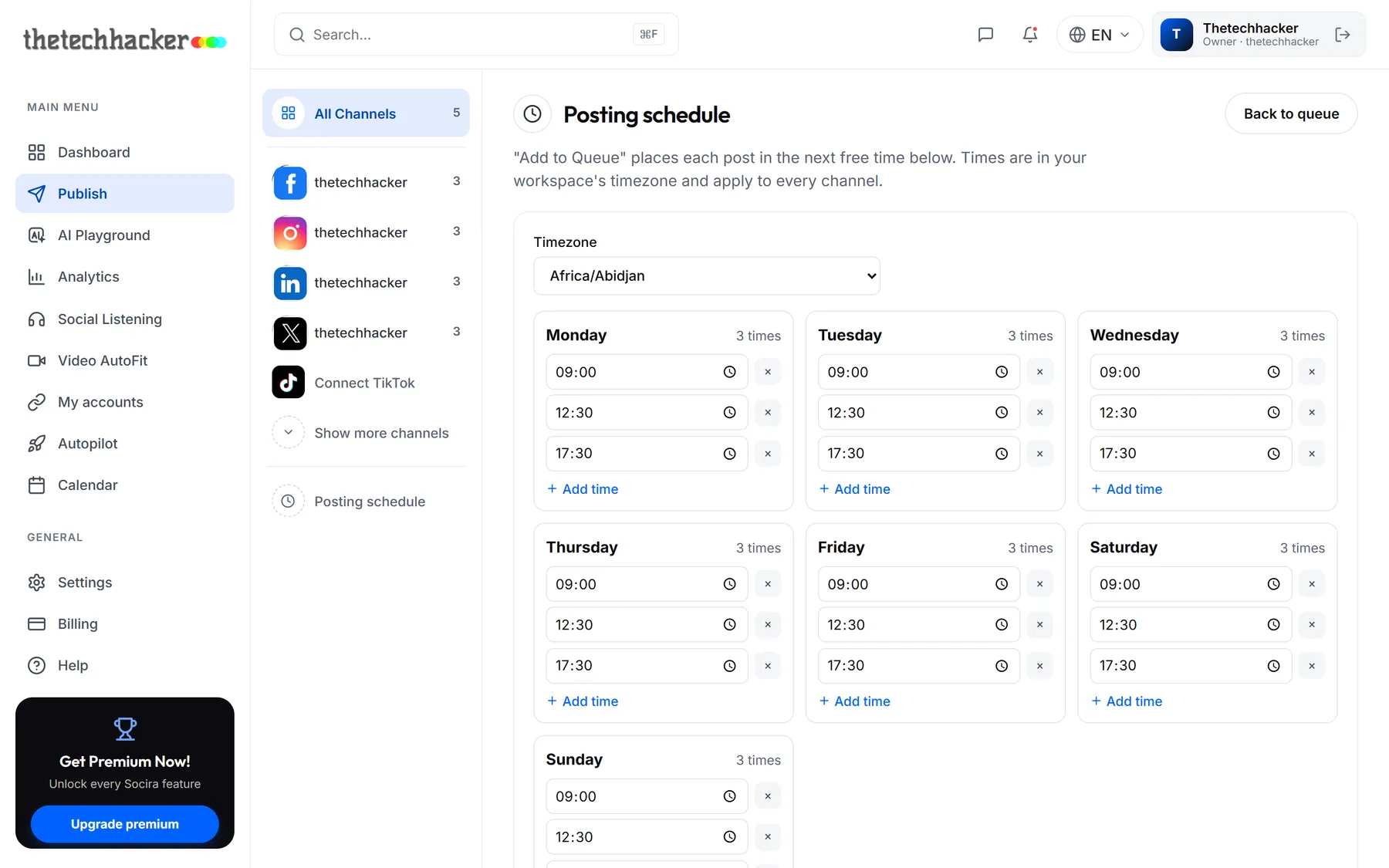
- Open Posting scheduleOn the Publish page, click Posting schedule in the left column.
- Adjust each dayAdd a time with Add time, remove one with the ×. Quieter weekends? Give Saturday and Sunday fewer slots.
- Copy to save timeSet up Monday, then click Copy Monday's times to every day or Copy Monday to weekdays only.
- SaveClick Save schedule. Posts already in the queue keep their times; new ones use the new slots.
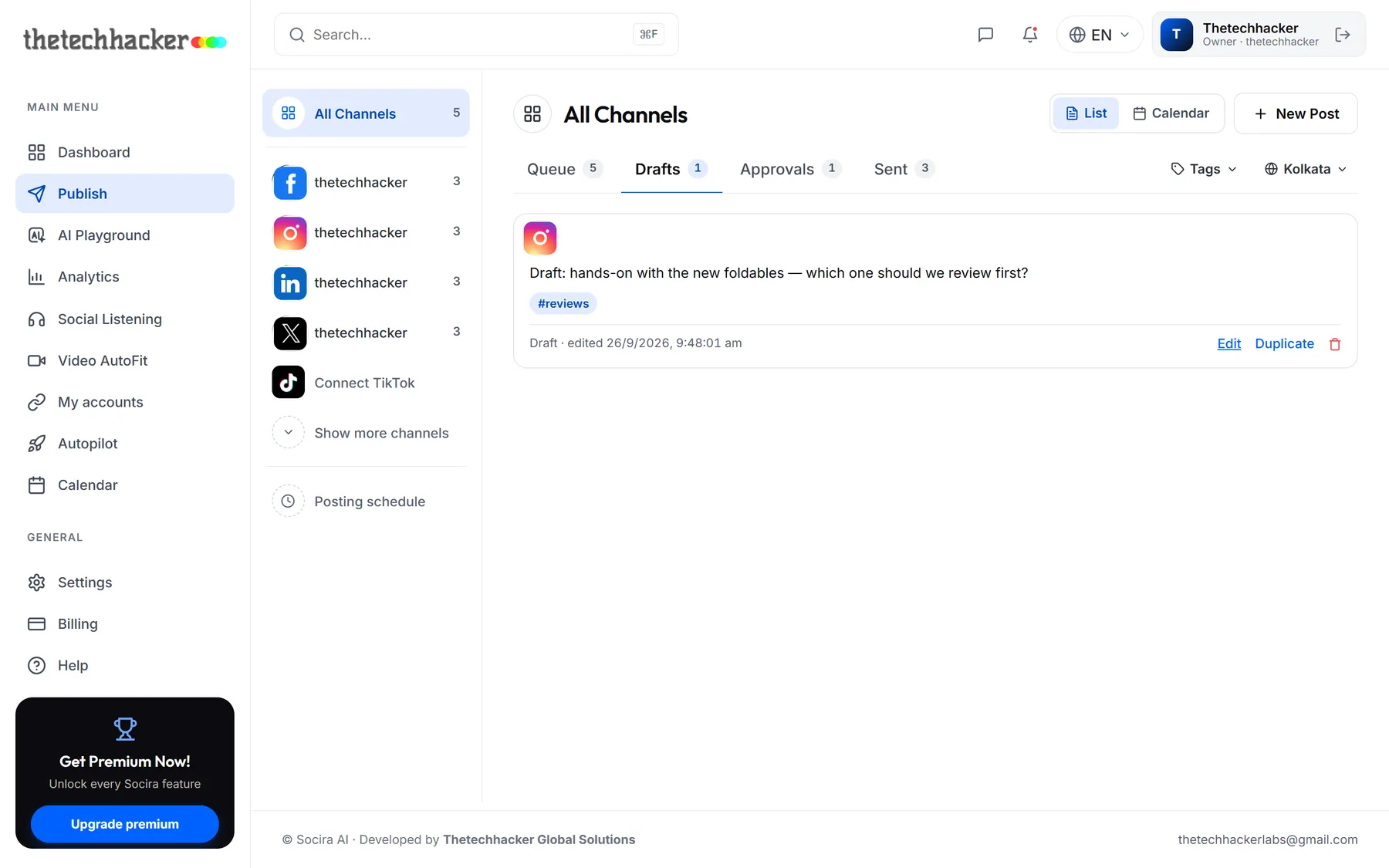
Drafts and sent posts
Drafts holds anything you saved for later. Open one, finish it, and send it like any other post.
Sent shows what went out and how it did on each network. If something failed, open it and click Retry. Only the accounts that failed are tried again.
Was this helpful?
Last updated 26 September 2026