Keep your account secure
Two minutes now saves a very bad day later.
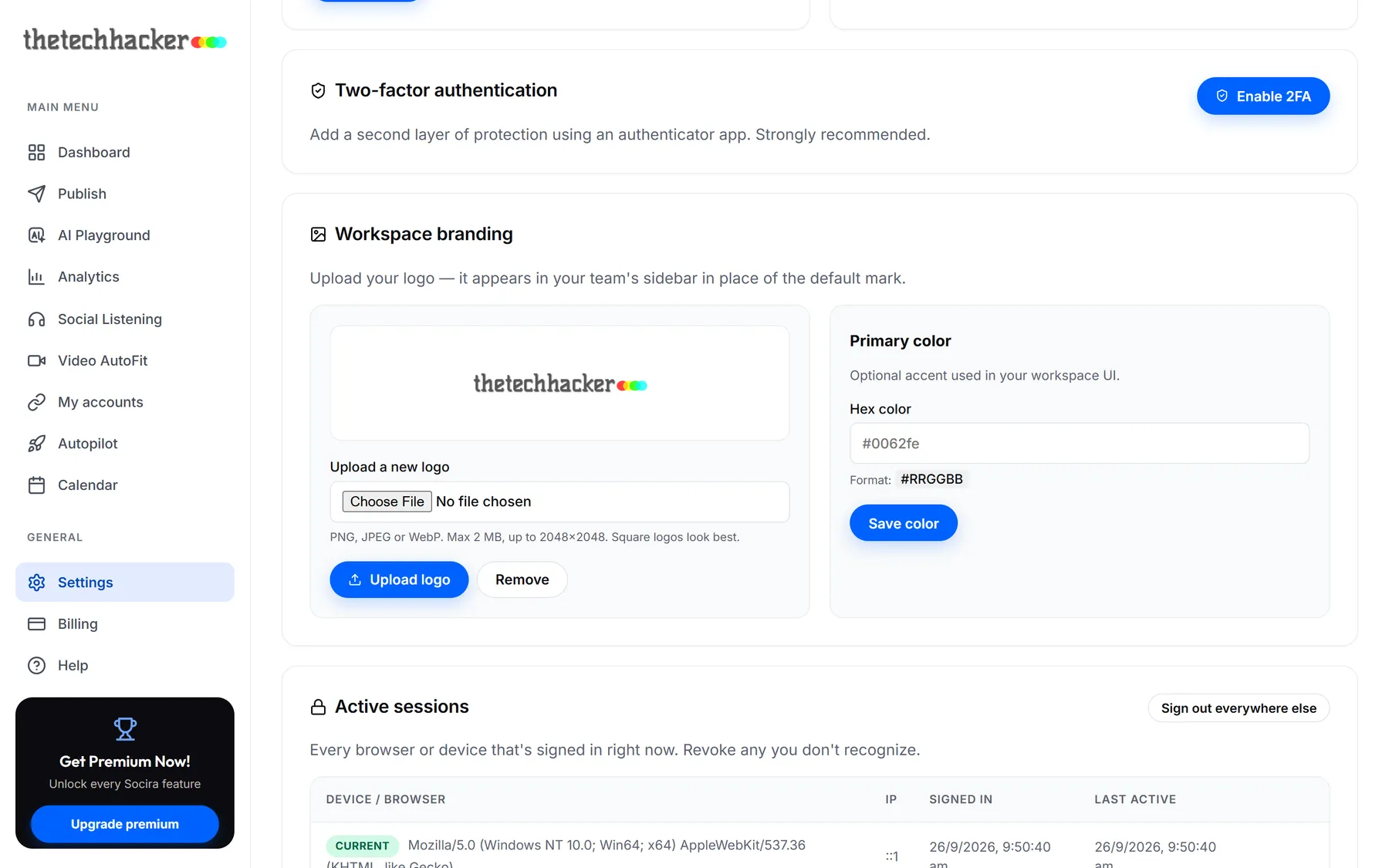
Turn on two-factor sign-in
Your Socira account can post to every channel your brand owns, so it's worth protecting properly. Two-factor sign-in means a stolen password alone isn't enough to get in.
- StartGo to Settings and click Enable 2FA.
- ScanScan the QR code with an authenticator app such as Google Authenticator, Microsoft Authenticator or 1Password.
- ConfirmType in the 6-digit code the app shows you.
- Keep your backup codesSocira gives you a set of one-time backup codes. Save them somewhere safe; each one gets you in once if you lose your phone.
Check where you're signed in
Under Active sessions you can see every browser and device signed in to your account. Don't recognise one? Sign it out, or click Sign out everywhere else.
Change your password
In Change password on the Settings page, enter your current and new password and click Update password. You can't reuse a recent one.
Good to knowAfter five wrong passwords in a row, Socira locks the account for 15 minutes. It's annoying if it's you, and very annoying if it isn't.
Was this helpful?
Last updated 26 September 2026